Showing posts with label ubuntu. Show all posts

How to Play Angry Birds in Ubuntu

For those of you who are a fan of "Angry Birds" but you are using Linux, fear not... Here's an instruction on you can play it on Ubuntu.

 I know there are many of you who are a fan of Angry Birds. It's actually the next big game after Plants and Zombies! So I do hope you will also enjoy playing it!
Continue Reading

How To Install HP D1660 in Ubuntu

If you have Ubuntu Lucid Lynx and have an HP Printer Deskjet D1660, and you found out that it is not printing, don't worry, below is a detailed instruction on how to make it work. And I do hope it will help. 

  1. Go System> Administration> Printing
  2. Right Clcik Deskjet d1600 series
  3. Click properties
  4. Click Settings
  5. "Change" in Make and Model bar  ....it will search for driver
  6. Click HP, click deskjet 1600 series
  7. Choose the driver HP Deskjet D1600 Series, hpcups 3.10.2
With this, it simply means that HP Deskjet D1600 series still runs in hpcups and not with the latest hp printer drivers for linux.

If this post helped you, I would appreciate if you will leave a message of thanks below.:)
Continue Reading

Why Change To UBUNTU?

Why Do We Need To Change To Ubuntu?


A friend of mine has a window 7, and he said window 7 still have lots of bugs and is hard to find suitable drivers for it.

If you are really looking for a fully licensed, fully functional operating system for your office, I strongly suggest that you switch to Linux particularly Ubuntu.

Here's the common reasons why people are hesitant to change to ubuntu:


  1. They cannot use their Window based softwares particularly games, and in our case as ministers, Bible softwares. But then again, I already have discovered a solution on this as I have posted in my tech blog.
  2. They cannot use the "Web Cam-Audio" feature of their laptop. This is because Ubuntu hass no "Client Messenger" that really supports this. But when it comes to messenger, there is completely no problem. This is also the only negative feedback that I can say against UBUNTU.
  3. They are already satisfied with what they have learned at first. Changing to UBUNTU is like changing a cellphone. You will have to get used to the arrangement of buttons, words used inside the system, etc.

But they are almost the same basically. It's just you need to get used to it. Once you get used to it, you will really enjoy it.

Reasons Why Change To UBUNTU
  1. Ubuntu is simply more secure than that of Windows. I am not saying that it is a hacker free OS, but simply more secure.
  2. Does not require tremendous amount of RAM. If you have a laptop about 2 years old, that has 80G HDD, 512MB RAM, you can still run the latest edition of UBUNTU, but these cannot run ViSTA and windows 7. In short, it has a very low requirement.
  3. Ubuntu is 99% Virus Free. It's not 100% because there are some virus that exists in linux world, but it is very rare.
  4. More stable. In my personal experience for almost a year of having ubuntu in my laptop, I really didn't have problem of slow down despite of the fact that I am already using 75% of my total hard drive. Try that in windows and it will take eternity for you just to boot up.
  5. COMPLETELY FREE. Are you a minister or a pastor? If you are, are you using pirated software of windows? If you do, then here is a replacement, completely free, completely legal. Why don't you change?

It's a step of faith to change in UBUNTU if you are already used with Windows. Hehehe... Hope this can be a blessing!!!
Continue Reading

How To Install E-Sword In Ubuntu: A Better, Easier Way

So far, for about a year now in my use of Ubuntu, I really haven't got a realiable Bible Software for Ubuntu in comparison to the famous E-Sword. I tried searching the net for any Bible Software that I can use. There are two that I have found, the Bible Time and the Gnome Sword.
Bible Time has a real good interface as that of the E-sword. My only problem with this is that the Bibles used here are not reliable. I have found several errors in comparison to the printed version. One of my friend said that developers probably copied it manually from the Bible that is why there are lots of typographical errors in it.
Gnome Sword has a more reliable versions of the Bible. My only problem is that, the interface is difficult to dicipher. I feel like I am totally using a different software with totally different format. Furthermore, I find it hard to understand the “how to's....” of Gnome Sword.

My desire is to install E-Sword. The best FREE Bible Software on the net. But how am I going to install this in my Ubuntu when it only function in Windows.
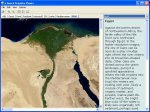
I scanned the net for answers and I only found ONE answer among the blogs I have read. They say that you can install E-Sword using WINE. However, as I tried reading the instructions, it will be very difficult for the non-geeky people to install it. There are several file extentions that you will have to download in order to allow it to run. Furthermore, the reviews are devasting. Some says it runs, but very slow.

Today, I will be presenting another way in installing E-Sword under UBUNTU.

Before we start, let me tell you this, I would say that WINE sucks. It only gives an immediate solutions to light Windows softwares but cannot run heavier ones, not even Chikka, Publisher, and other Window programs.

Let us begin. The main answer to your agony is the use of VIRTUAL BOX. First and foremost, you must install Virtual Box. Virtual Box is a virtual engine where you can install a totally different operating system that will run under UBUNTU. The main advantage of this is that, you can run more programs, without any problem because when you run it, it will just function “JUST LIKE” you have a Window OS.

Though, it still cannot be the ultimate answer for running programs since it still cannot run heavier programs especially the one that uses enormous RAM like games and graphical softwares, still, this is the best that you can have, FAAAAR.... better than WINE.
Installing virtual box is very easy. Just follow this instructions.

  1. Click Application> Add/Remove
  2. In the search box, type in “Virtual Box”
  3. Click the Virtual Box, be sure that it has check on the box.
  4. Click Apply Changes.

Now, that you have Virtual Box you need to install Windows. You need a fully functional Window installer. But before that, be sure that you have the right settings.
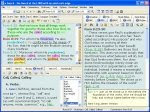
In your installation you will be asked with many questions, it is very simple to answer so that it would not be a big problem. Furthermore, you can always make changes later on.

Let's set up everything first before inserting your CD.
  1. Click Virtual Box OSE
  2. Click Next.
  3. Follow instructions. Type in “Windows” for the name, OS Type “Windows XP”, Base memory 500MB (depend on your will), Video Memory 64 MB (again, it's up to you how much will you allocate). Harddisk, 10 G (automatically expands), CD/DVD Drive installed, Audio ALSA driver.

If everything has been set up, you are now ready to install Windows.
  1. Insert CD/DVD installer.
  2. Click “Windows” (the name of your virtual OS) > Click “Start”
  3. In a short while, you will be brought up to the page as if you are installing a Windows. Follow instructions and the way it go.
  4. After installation, I strongly advise to also download and install the “Install Guest Addition”. It will enhance your usability for Windows. It's a kind of bug fixer, so don't miss it.

Now that you have installed Windows in your virtual drive. All you have to do is to run it under the Virtual Box OSE. Once the window is running, then you can freely install now your E-Sword exactly as if you are installing it in “Real Window” OS.
Some Few Things To Remember

In running Windows with Virtual Box OSE, put it in mind that you are really running windows in a new computer and you have to shut it down properly.

Secondly, the Virtual Box OSE that I am talking about, which is also downloadable using UBUNTU does not come with the auto-detect program for USB. So if you are thinking that you can install something in it using USB, just an info, you CANNOT do it. BUT, there is a way. I haven't tried it yet so far, but you can. Just Google “How to use USB in Virtual Box OSE”. You need to be a little geeky though to succesfully run it.

Another solution for this is to burn your softwares first in a CD/DVD, then insert it to your ROM for it. Virtual Box OSE detects and read it.

Now, I am enjoying UBUNTU a lot better. Why? Because I can now use Chikka, work with Publisher, use E-Sword, play Window based games (the slower ones), etc. using Virtual Box OSE.
Continue Reading

Basic Software Terminologies

Getting help with your computer software can be easier when you know the correct terms to use. One of the biggest problems that new computer users have with technical support is not knowing how to correctly describe the problem that they're having. And it isn't fair to expect a tech support person to automatically know what a "thing-a-ma-jingy," or "whatcha-ma-call-it" is.

The following describes the correct names for common components of software so that when you experience a problem, you can effectively describe an issue that you're having and a technician can readily resolve it.

User interface - this is the visual design of a program. It may contain squares, boxes, words, icons, and buttons. If you're experiencing insufficient memory for example, you might see black rectangles across the user interface of your software programs.

Title bar - this is the top-most part of a program that displays its own name or it may describe the contents displayed in another part of the interface. If a program is incorrectly coded, you may see a wrong description in this part of its interface.

Menu bar - this part of a program displays menu items and menu options. Some of the most common parts of a menu bar grants access to File commands, Open commands, Save commands, and Print commands. An example of an error in this part of an interface would be if an option was missing or grayed out (lighter in color).

Tool bar - this part of a program displays small icons across the top which represent tools. Clicking an icon will open a tool or process a command that might also exist on a program's menu bar. Problems in this part of an interface are uncommon, however if you find yourself repeatedly clicking an icon with no results, you can correctly describe the problem by referring to the toolbar.

Minimize, Restore, and Exit buttons - these three buttons are usually located on the right-most upper part of a program's interface and each allow you to minimize a program's screen, restore it to its original size, or shut down the program completely.

Scroll bar - this convenient tool allows users to move data up and down the computer screen.

Status bar - this part of a program is located at the bottom-most part of its interface, and it usually displays small messages that indicate the progress of a command or task. If programmed incorrectly, an application might display the wrong information in this area.

Context menu - like the menu bar, a context menu displays when a user right-clicks on something. It displays commands just like what you see on a File menu or a Help menu.

Input box - input boxes are usually small rectangles that allow you to type data into a simple interfaces like a webpage or browser window. If you find that you can't type information into one of these, you can effectively resolve the issue with a technician by calling it an input box, rather than a "white rectangle," or "place to put in text."

Button - buttons perform a command after a user clicks them with a mouse. Problems occur when the text of a button is grayed out or if it doesn't appear to sink into the screen when clicked.

Check box - a check box is a small box that allows a user to indicate several choices among many. When clicked, a small "x" displays inside a box. Similar to the check box, a radio button allows a user to indicate a single choice among many. Problems with radio buttons and check boxes occur when a user makes one choice, but the interface reacts as if the user made many choices (or none at all). When describing a problem to a technician, be sure to indicate whether the problem occurs with a check box or a radio box. Computer novices mistakenly interchange the names of both of these controls.

I just hope that these short list of Software Terminologies will be a good help in understanding your software.
Continue Reading

Ubuntu 9.04 Released: A Preview to The Improvements

Today, I would just like to give a note to my readers that Ubuntu 9.04 has already been released and has been improved. Generally, the looks doesn't have so much improvement. But what's more important is the underneath features.

Before we go to some important improvement, to those who do not know Ubuntu, Ubuntu is a TOTALLY FREE Linux Operating System which is one of the best the you can have out there. So if you are running Windows, it is similar to it in the sense that it is also an operating system, but totally different in its operational environment.

Ok, the improvements. Here are some of the notable improvements as mentioned to the video clip below.
1. Braseo Disc Burning - They just arranged it in a way that is very user friendly.
2. Computer Janitor - The new clean up program which Ubuntu 8.04 and 8.10 doesn't have.
3. New Themes and New Wallpapers.
4. Fonts have been improved.
5. Shut down times has been improved.
6. Open Office - The Open Office is now in version 3 unlike in Ubuntu 8, the default is still in version 2.4.

I think this is all that I can take note of. I suggest you watch the clip below to it for yourself.

For your information, I strongly recommend UBUNTU if your computer is dedicated to office use. It is far more stable than Windows and has been highly improved since the first time it came out. And the best of all, it is almost virus free.

Continue Reading

A Google Earth Feedback

I was fascinated with the features of Google Earth. I would say that Google always deliver a good source of information. And now even the geographical information of the world. I love Google, and I am definitely a fanatic of Google.


What's with Google Earth?


Not only that you can see any location in the world via satellite imagery, you can also see the historical imagery of certain places in the world. You can also explore the ocean floor and discover lots of things in it.


Some Issues That You May Face When You Use Ubuntu


To my dismay however, I have some issues concerning Google Earth. I am using Ubuntu Intrepid Linux on an Acer Aspire 4330 Laptop.


They say that this works in Ubuntu, but in my experience, it doesn't work that well. The graphics is too choppy and its like huge pixilize imagery. Sometimes it even crashes and cannot be played.


I don't know if I missed something from the system requirement of Linux below. If ever I did, I do hope someone will be able to explain me.


Minimum:

  • Kernel: 2.4 or later

  • glibc: 2.3.2 w/ NPTL or later

  • XFree86-4.0 or x.org R6.7 or later

  • CPU: Pentium 3, 500Mhz

  • System Memory (RAM): 256MB

  • Hard Disk: 400MB free space

  • Network Speed: 128 Kbits/sec

  • Graphics Card: 3D-capable with 16MB of VRAM - Screen: 1024x768, "16-bit High Color" screen

Recommended:

  • Kernel 2.6 or later

  • glibc 2.3.5 w/ NPTL or later

  • x.org R6.7 or later

  • System Memory (RAM): 512MB

  • Hard Disk: 2GB free space

  • Network Speed: 768 Kbits/sec

  • Graphics Card: 3D-capable with 32MB of VRAM

  • Screen: 1280x1024, 32 bit color

Tested on Ubuntu version 6.06, but certainly works on others.


Continue Reading

Chikka Probably Not Compatible With Ubuntu

I tried installing Chikka Messenger in my Ubuntu using WINE. Downloading the files is never a problem. I installed it perfectly. To my dismay, all other parts of the installed new software are running perfectly except the Chikka Messenger itself.

I really do not know the issues behind the program. But Chikka is suppose to be a very light program that can easily be run through WINE. But the fact is, it won't work in my Acer Aspire 4330 with Ubuntu. I am not making a conclusion that Chikka can not be run inside Ubuntu, but it is PROBABLY incompatible with Ubuntu.

I would love to try Yahoo Messenger soon. So watch for my updates.

Chikka Messenger is a messenger used for FREE Cellphone Texting. This is a great program that will really save your load in your cellphones. This software run in Windows.
Continue Reading

Google Chrome Preview


Before I forget, here's the picture of what Google Chrome looks like. It is sleek yet very simple browser that will rock your web surfing experience.

For Mac and Linux users, wait for a while. It will not take long for Google to release their issue for you. They are working hard in integrating Firefox coding with Google Chrome. I myself is already excited to use this new simple, but powerful browser.
Continue Reading

A FileZilla Problem With Ubuntu

For all the FTP software that I was able to use, I would say that Filezilla is one of the best.

However, if you are using Filezilla in Ubuntu, there might be a little problem. Until now I haven’t solve this problem. If for example you are going to edit a php file, in windows, you can simply right click it and click edit.

However in ubuntu, when you right click it and click edit, you will be asked to set the editor, in which case, gedit is Ubuntu’s default text editor. And then you will be asked to browse the “exe” file command…. and my biggest problem is, where in the world will I look for that “exe” file command? I don’t know. Perhaps, you can try searching it and let me know about it.

Please do note that I don’t have any problem in using Filezilla in my windows because it sets the default file editor automatically, the Notepad.

Before I end, Filezilla by the way is TOTALLY FREE and FULLY FUNCTIONAL, NOT TRIAL, FTP Software.

If you have any answer, please let me know, post it below. Thanks!!!

Continue Reading

Gparted Compatible With Acer 4330

Yesterday, I downloaded the so-called "Gparted" software. It is a totally free software used in Ubuntu (I think in all Linux OS), that makes it easier to create a partition without necessarily erasing everything in your hard drive. But for safety purposes, please back up all your files first before partitioning your drive.

Here's a simple procedure:

First, download the Gparted from Source Forge. It is about 95 MB which means that it may take a while in downloading it.

Next is to burn the CD image that you just have downloaded in a CD. Do not burn it merely as a data file, burn the CD image so that you'll get the files rightly embeded in your CD.

Then reboot in that CD. To do this, you need to go back to your CMOS (just before booting, press F2. For other laptops, you can enter your CMOS by pressing Delete. Please do note thatt different laptops may have different keys in entering CMOS) and set your priority booting to your CD/DVD drive. Save and exit then restart your system. This time, it should reboot on your Gparted CD.

Once it booted, be sure to choose choice 2 for you to be able to eject the CD after booting. Then it will continue to load the rest of the files. After booting in your CD, everything should be self-explanatory. It is much simpler than partitioning windows.

Please note that once you hit the "Apply" you are ready to partition your hard drive and it may take a while to finish it.

After doing so, eject the CD, reboot again and go back to your CMOS, then reset your priority boot to your hard drive. If you have done it correctly, you should see another partition of your hard drive when you click "Places" in your Menu Tab.
Continue Reading

UBUNTU Desktop Effects

I have been a fan of UBUNTU when I have seen that it can do things as what windows can do. But when it comes to desktop, I assure you that UBUNTU is still far better than what windows has to offer.

One of the best thing that you have to know about UBUNTU desktop is the Compiz or also known as the "compositing manager". It gives your desktop animation effects, and the "cube" thing that you haven't seen in your windows.

If you are familiar with the cube (Beryl) in Ubuntu and is looking for it, it is combined now with the compiz.

If you are interested to try ubuntu, why not download it from www.ubuntu.org. If you are using windows and you feel that you are not yet ready to abandon windows, you can install ubuntu just like the ordinary softwares embedded in your windows. If you won't like it, you can simply uninstall it. But I do encourage you to try.

If you have installed it, click here for more information about ubuntu desktop effects.
Continue Reading

Ubuntu Theme Sites

Continue Reading

Solving Update Error of Ubuntu in Acer 4330

Well, I think this command is not only true in Acer 4330 but to all laptops and other desktops as well.

If you are using Ubuntu, there will be times that you will receive errors like this while you are updating:

GPG error: http://archive.ubuntu.com hardy-updates Release: The following signatures were invalid: BADSIG 40976EAF437D05B5 Ubuntu Archive Automatic Signing Key Failed to fetch http://archive.ubuntu.com/ubuntu/dis...6/Packages.bz2 Hash Sum mismatch
Some index files failed to download, they have been ignored, or old ones used instead

This is sometimes caused by your last update where the cache of your computer has not been cleared. In order to still get the updates, here is a possible solution that might solve this error:

sudo apt-get update -o Acquire::http::No-Cache=True

Then you can type in more update commands such as these:

sudo apt-get clean && sudo apt-get update && sudo apt-get upgrade

By the way, just want to remind you that these codes are entered using the terminal, "the command prompt" of Ubuntu.

The terminal is located in Applications>Accessories>Terminal

There you have it!!! Hopefully it will solve the errors you are getting.
Continue Reading

Wordpress Released 2.7

To all wordpress lovers, version 2.7 is already out and ready to be downloaded. You will be surprised with this latest version. It will completely change your admin area. You will have to get to use with the new set up.

By the way, be sure to check first the compatibilities of your plug ins before you upgrade. Some of you plugins may not function well in this latest version. But this is version is very exciting and I really love it.

I would also advise you to download WP Auto-Upgrade plugin and install it before you upgrade your website so that you will save yourself from lots of troubles in upgrading your site.

For WP Auto-Upgrade CLICK HERE


For Wordpress 2.7, Click HERE
Continue Reading

Upgrade to Ubuntu 8.10, Solution to Video Freezing of Acer 4330

Just a very quick update. I just discovered this in my laptop. If you are using Acer 4330 with Ubuntu, and you are having some problems when playing videos like freezing and crashing of your software, upgrading it to 8.10 might be the best solution for now.

I installed 8.04 Hardy Heron on my laptop, but i get this Freezing problem every time I play video files. But now after upgrading, everything now is going smoothly. I can now have a complete use of my laptop.

Get UBUNTU 8.10 Intrepid now and update it.


http://www.ubuntu.com/getubuntu/download
Continue Reading

Acer Aspire 4330 Drivers

Acer Aspire drivers should not be difficult to find in the net. But I just want to give these links to you to make your life a lot easier. Scan through this links if you will find the drivers that you need, and hopefully it will because I downloaded my drivers from these sites too.

Just a note, please read this very carefully.

In installing Vista or XP, please note that some of the drivers may vary if you have installed Vista in comparison to XP. I really don't know why is it like that exactly, but I think it is in the difference of the their OS environment. So be sure to check first what kind of Operating System did you installed.

So here are the useful links that you may want to check.

Intel Drivers - If your Acer Aspire have Intel Chipsets

Atheros - For your wireless LAN if you are using Atheros for your wireless connection.

Acer Aspire 4310-4710 - Click here if you really are looking for a complete set of drivers for your Aspire 4310-4710.

Continue Reading

Review For Dell Inspiron 8200 Laptop For Ubuntu

Motherboard: Dell Inspiron 8200 Laptop
CPU: P4m 2Ghz (stock)
RAM: 512Mb (generic)
Video Card: nVidia GeForce4 440 m
Sound Card: Onboard
HD: 27Gb Western Digital
OS: Ubuntu 7.10 Gutsy Gibbon

Performance
Generaly Good. Issues with faulty Heatsink on Graphics overheating the unit (Not an OS Issue).

Source: Ubuntu Forums: www.ubuntuforums.org
Continue Reading

Review For Dell Dimension 4600 For Ubuntu

Dell Dimension 4600
CPU: Intell P4 2.4ghz
Mobo: standard mobo for a dimension 4600
RAM: 1GB PC2700 DDR333
Video Card: Nvidia GeForce 6200
Hard drives: 2x 320 GB (Haven't setup LVM yet but plan to thanks to the recent sticky)
Optical: DVD-RW DL Memorex and DVD+RW NEC
Tuner: pcHDTV HD-5500
Remote: Snapstream Firefly

All hardware installed without any problems. I had to use the lircrc and lircd.conf files from mythtv.org for the firefly. After that the remote worked fine.

I also had to setup ndiswrapper for my netgear wireless card. That was no problem either.

Mythbuntu is awesome.

From: Jonathan Brown
Source: Ubuntu Forums: www.ubuntuforums.org
Continue Reading

Review For Dell Poweredge 2450 server 2U With Ubuntu

Dell Poweredge 2450 server 2U(no I'm not kidding)

CPU: 2 - PIII, 1 Mhz, 256K cache
MB: Dell 35XYT, Dell PERC 3/Di: SCSI-3 Raid controller, 3-64/32bit PCI riser, onbaord VGA 8MB/2x USB/LAN/2x PS2/2x serial/1 par.
Memory: 1GB, ECC (2 x 512MB), 133 Mhz
HD: 4 x 9.1GB SCSI-UW2 in raid0=36GB(sys), 1 x 250GB IDE (seagate), 1 x 320GB ext USB (seagate)
Tuner Card: 1 x Happauge PVR 150 PCI, 1 x Kworld HD Plus 120 PCI(doesn't work, yet)

Performance: All hardware functioning except the Kworld card.
Once I got Ubuntu/Myth installed and setup backend(a couple of hurdles, although nothing linux/ubuntu related.)everything works great on OTA NTSC programming using the PVR 150. However, I'm still working on getting the HD plus 120 working - would like go "HD" w/ myth. Obviously, I'll have to upgrade my frontends to support "HD", but was hoping my current backend could handle it. I'm confident that I could run 2 more NTSC encoding tuners without problems. I did try an external USB drive set up as my default recording folder and the recordings turned out choppy w/ dropped frames - now its backups only.

Frontend: Salvaged Sony VAIO

CPU: PIII, 933 Mhz, 256k L2.
MB: ASUS(sony branded) CUSL-LV w/ snd, lan,2x USB
Memory: 512MB (2x 256B)
HD: 40 GB IDE, 80 GB IDE (windows XP)
Video: nVidia MX400, 64MB
Tuner Card: none

Performance: All hardware works except an ATI TV wonder USB wireless remote.
Playback/liveTV is fine till I open another window like firefox browser, then it will drop a few frames here and there. I use this interface more for managing recordings than viewing, so its really not an issue. The ATI remote wasn't a priority - I just had it lying around and thought why not. I think it'll work eventually.

Frontend 2: Softmodded Xbox

Info: Other than dashboard/software, everthing else is original Xbox

Performance: XBMC works great, but...........
Softmodded and installed XBMC no problems. Unable to install myth or get the mythtv python script to work on XBMC (tried many methods many times). However, Video playback is exceptional - Hardware MPEG2 decoder?
One other small glitch I've noticed is when exiting a video, sometimes it takes about 30-45 sec to return to the folder and it appears empty. I then have to go back one folder and return to see my recordings - not sure if this is backend storage issue or xbox config.
__________________
Pri. Backend: Poweredge 2450 2U server, dual PIII, 1G ram, SCSI raid, 250G IDE HD, PVR150, Kworld 120 (ATSC) Frontend1: Intel PIII 900MHZ, Sony MB, 512 Mb pc133 ram, Nvidia mx400 64mb AGP,

Source: Ubuntu Forums: www.ubuntuforums.org
Continue Reading

Related Posts with Thumbnails
 

Site Info

My Web Site Maker University Copyright © 2009 Community is Designed by Bie Blogger Template